A Hands-Free Method
to Remember a Brilliant Idea on the Go
For the last fours years I have relied upon a few great iOS apps to help me remember a brilliant idea when I find myself unable to type a quick note (like while driving). Now, I have a better solution.

Photo Credit: emilykneeter
I finally found an easier way to not only email myself, but send a new task directly to Nozbe, my task manager, all with the help of Siri on my new iPhone 6.
Upgrading from Say it & Mail it
Last month I released my new free eBook, 10 Miracles, where I recommended 10 tools for productivity junkies.
One of those tools is the Say it & Mail Recorder, which is fantastic for emailing yourself a quick voice note when you can’t easily type a note on your iPhone.
Say it & Mail it was great for an iPhone without Siri, but Siri provides the ability to send a transcribed voice note directly into my favorite productivity tools, like Nozbe.
How This Works
Whether you have an iPhone with Siri, a Windows Phone with Cortana, or an Android device with Google Now, you have the ability to send yourself an email using the built-in voice assistant.
All you have to do is tell your phone to email you, let the phone transcribe the message, and then send it on its way. So simple.
Here’s where this gets better.
Nozbe is one software tool I use and love, which comes with an email address specific to my account. These are special email addresses because the messages are forwarded directly into my account, not to an email program.
Let’s use Nozbe as an example to show you what I mean.
Emailing a Task Directly into Nozbe
When you have a Nozbe account you are provided with an email address that looks something like this: JeffSanders.xxxx@nozbe.me (the four x’s are a unique set of numbers that you define in your account).
I don’t share my special Nozbe email address with anyone expect my wife because I don’t want random people sending me tasks. That would get crazy real fast! Only share this email address with people on your team or someone who routinely sends you tasks to complete.
And yes, my wife sends me tasks all the time. It’s a very efficient way to “ask” your significant other to do something for you. 🙂
Here’s the process:
- Using your phone’s voice assistant (Siri, Cortana, or Google Now), send an email to the special email address.
- Check the Inbox of Nozbe where you will now see your transcribed email.
- The subject line of the email becomes the task itself.
- The body of the email message is tagged as a note to the task.
Tip: Don’t Tell Siri to Email “Nozbe”
In case your were wondering, Siri doesn’t recognize the name “Nozbe” very easily. I tried it dozens of times in different variations and Siri could never consistently understand what I was trying to say.
So, I created a fake person named Jason Taylor.
I added a new contact in my iPhone with the name Jason Taylor and I gave Jason my special Nozbe email address. Now, when I want to send a task to Nozbe using Siri, I tell Siri to email Jason Taylor.
She understands that name every time. I recommend you choose a name you can quickly and easily pronounce, and that Siri recognizes easily with your voice.
Take a look at the screenshots below to see this process in action.
Screenshots from Siri to Nozbe
1. Activate Siri

2. Tell Siri to Email “Jason Taylor” or the Avatar You Created
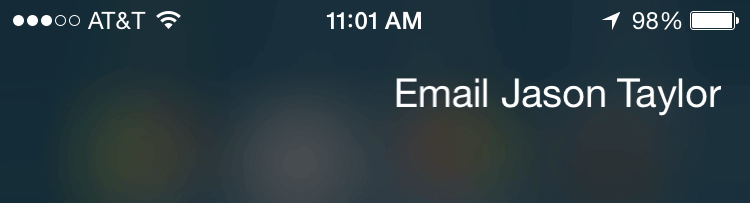
3. Tell Siri the Task and Any Notes in the Subject and Body
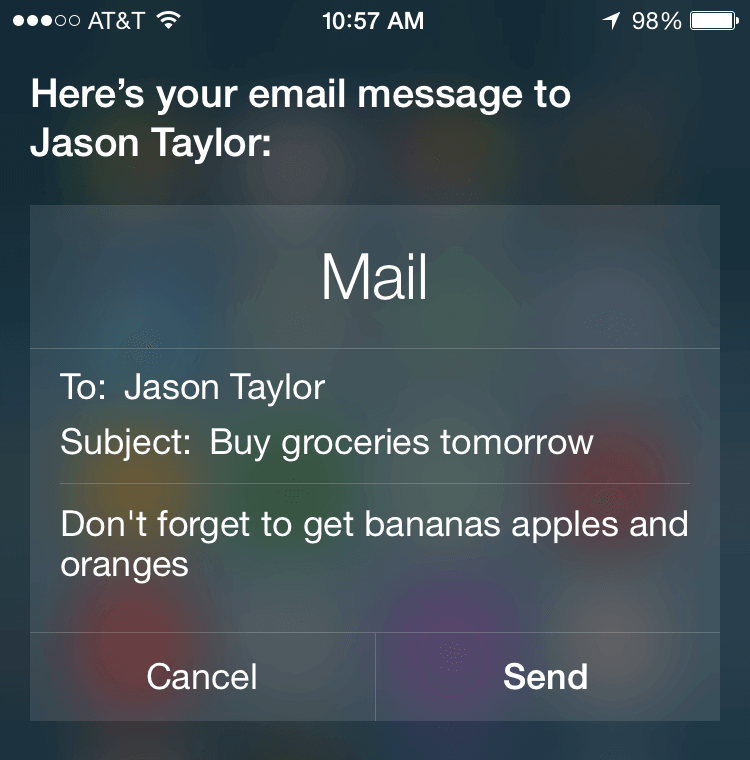
4. Send the Message
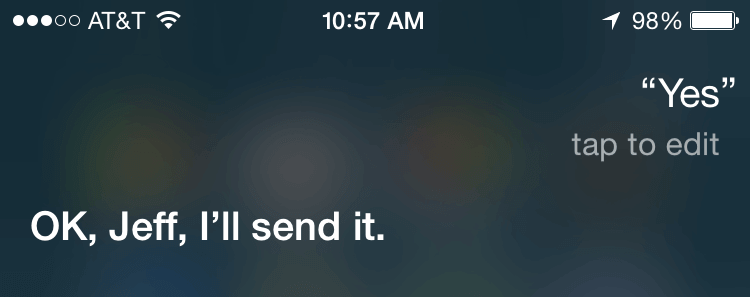
5. Check the Inbox in Nozbe for the New Task and Notes

Hands-Free Method with Siri
This process is very smooth and only requires your voice to activate Siri, record the message, and send it. I can now complete this process without ever looking at my phone while driving.
With Siri on an iPhone, you can do this process with only your voice if . . .
- Your phone is plugged in to a power source (with a wall plug or connected to your car’s battery)
- You have the passcode turned off (Settings –> Touch ID & Passcode –> Turn Passcode Off)
- You have “Hey Siri” turned on (Settings –> General –> Siri –> Allow “Hey Siri”)